Sprite Sheet Animation
In this Tutorial we want to create a Unity Sprite Sheet Animation for a given Sprite Sheet.
Prequisite:
– We use the newest Unity Version (5.1.3f1) (but it should work with every Unity Version after 4.x)
– Download the Spritesheet “Blocky” from http://opengameart.org/content/blocky
We will use the “blocky_walkright.png” sheet.
1. Start Unity
Start Unity and Create a new 2D Project.
Now you should see your empty Scene with a “Main Camera” Object inside it (Standard Scene).
Now in your Project Tab right click “Assets” and select “Import New Asset” and choose your block_walkright sheet.
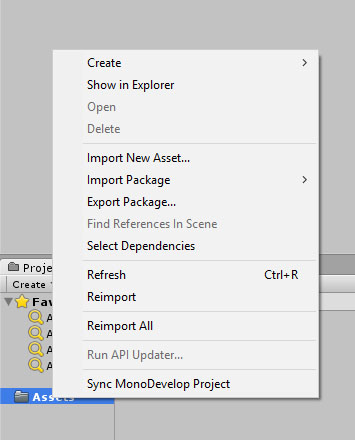
Now select and highlight your blocky asset – you should now see the following on the right.
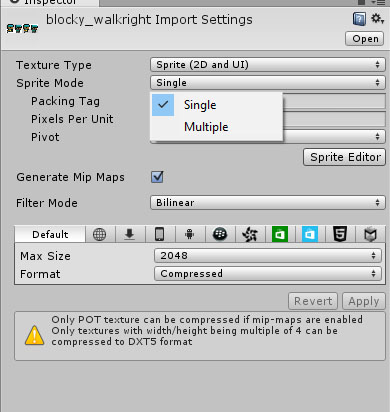
Change the Sprite Mode from “Single” to “Multiple” and change the Filter Mode to “Point” (so anti aliasing will be disabled – useful for pixelart games).
Hit “Apply” and changes will be saved.
Next in the same windows just open “Sprite Editor”.

Okay now comes the awesome part of this engine which i really love 🙂
Click on “Slice” on the top left and a new menu appear. Just change the method to “Smart” (this is not necessary but why not ?) and hit “slice”.
You now see lines that display the slices – and this fully automatically.
How cool is this ? Okay now hit “Apply” to finally save this setting.
In the bottom in your Asset Tab you can now select each frame from the sprite .
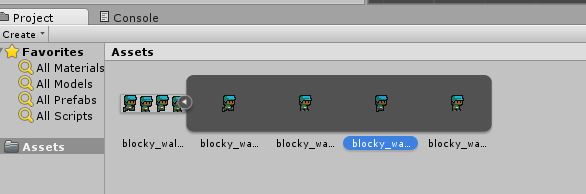
Now select all frames and drag them to your scene.
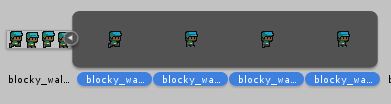
Voila – Unity automatically creates a animation for your.
If you now hit the “Play” Button your should see the Sprite Animation running.
This was the basic for Sprite Animation in Unity – i hope you liked it.
